
How to pay
The payment window belongs to NicePay, so it opens in Korean. One button in the top right corner turns it into English. These 6 steps are all it takes.
Before you start
- A credit or debit card issued in Korea
- Your card company’s app installed on this phone, with your card registered in it
- 1
On TixPass: choose card, agree, tap pay
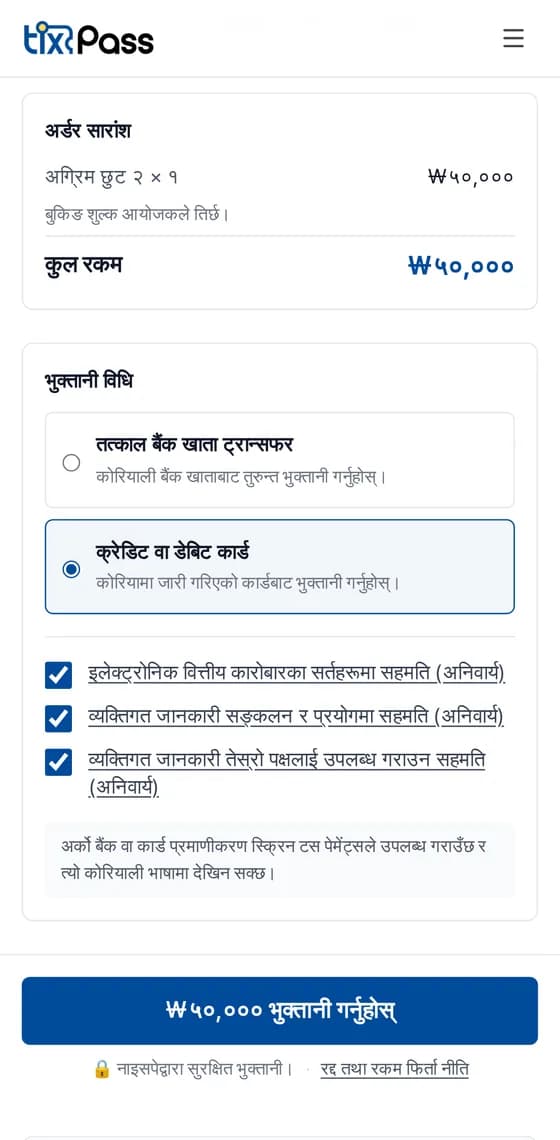
- Choose “Credit or debit card”. The next screen accepts cards only.
- Tick all three required boxes.
- Tap the blue button showing the amount.
- 2
Agree to NicePay’s terms (this screen stays Korean)
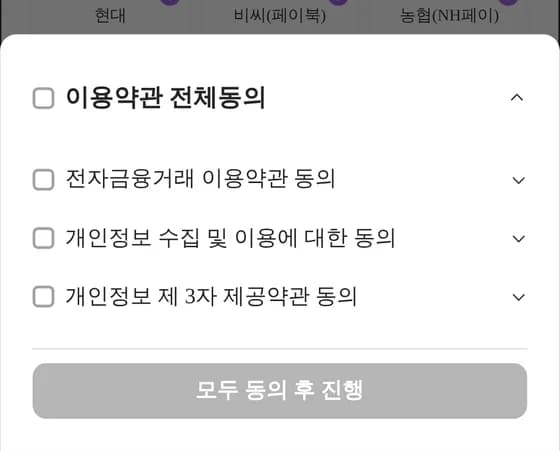
- The payment window opens and a sheet slides up from the bottom. It is not translated, so clear it first.
- Tap the top box — the three boxes below tick themselves.
- Tap the blue button.
- 이용약관 전체동의
- = Agree to all terms
- 모두 동의 후 진행
- = Agree and continue
The language button only works once this sheet is closed.
- 3
Switch the screen to English — this is the important one
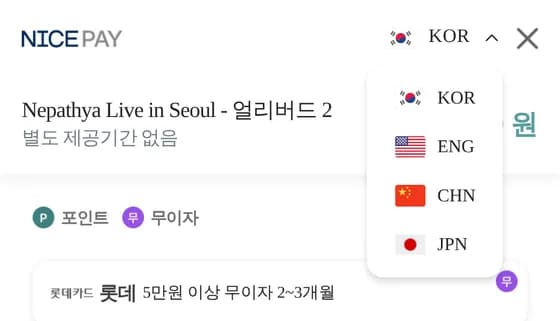
- In the top right corner you see 🇰🇷 KOR with a small arrow. Tap it.
- Choose 🇺🇸 ENG from the list.
- The whole payment window is now in English. Every step after this is English.
KOR, ENG, CHN and JPN are available. There is no Nepali.
- 4
Choose your card company
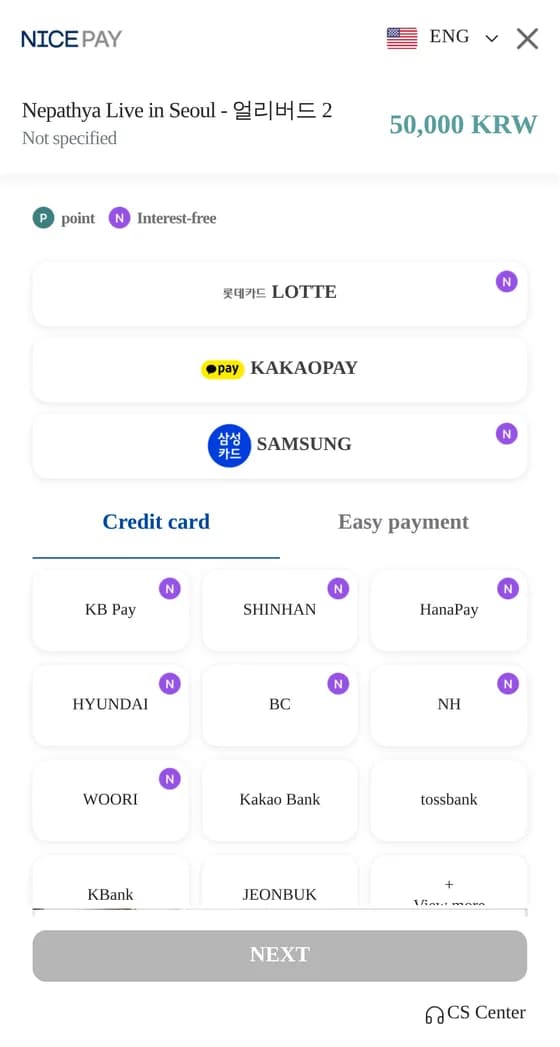
- Stay on the “Credit card” tab.
- Tap the company that issued your card — KB Pay, SHINHAN, HanaPay, HYUNDAI, BC, NH, WOORI, Kakao Bank, tossbank, KBank. Tap “+ View more” if yours is not listed.
- Then tap “NEXT” at the bottom.
- 5
Choose “Lump sum”
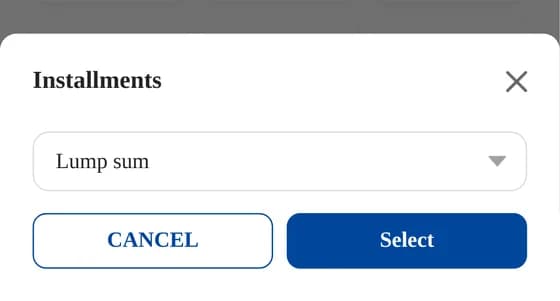
- It asks about Installments. “Lump sum” means paying the full amount at once.
- Tap “Select”.
- 6
Check and pay
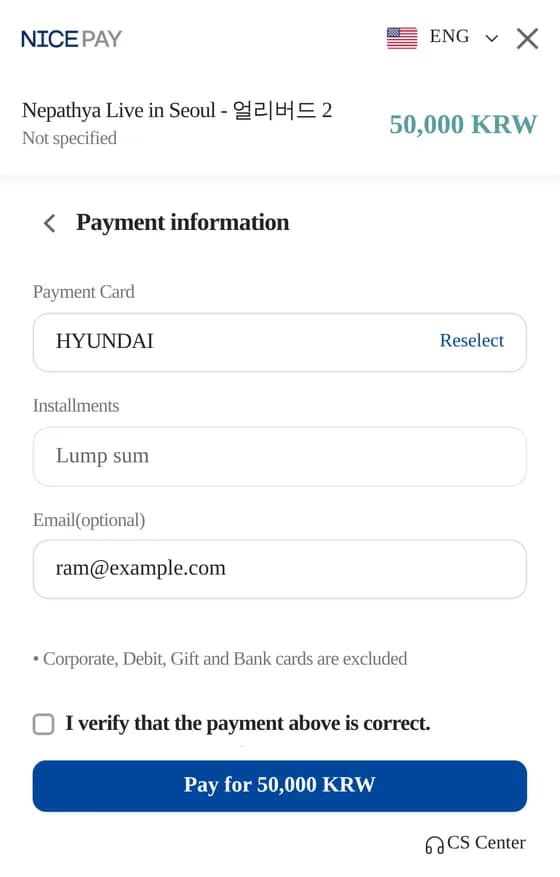
- Check the card, the amount and your email address.
- Tick “I verify that the payment above is correct.”
- Tap “Pay for … KRW”.
- 7
Finish in your card company’s screen
- Your card company takes over — usually its own app, sometimes a password page. Confirm with your password or fingerprint.
- If the app is not installed, install it, register your card, then start again from the beginning.
- You are then sent back to TixPass, and the ticket arrives at the email address you entered.
If you get stuck
- The ticket email never arrived
- Check your spam and promotions folders first. The ticket only goes to the address you typed when ordering.
- My payment was declined
- Check that the card was issued in Korea and that you still have room on your limit. Try another card as well.
- The payment window closed halfway
- Nothing was charged. Just start again from the event page.
- I do not have a card issued in Korea
- This payment window accepts Korean-issued cards only. Contact us and we will look for a way together.
Still stuck?
Use the “Payment not going through?” button under the checkout form to ask us directly. KakaoTalk @tix_cs and cx@tixpass.kr work too. Tell us the ticket holder’s name and roughly when you tried, and we will find it quickly.